
The most common email I get isn’t about the drawings. It’s usually some version of “why did this print tiny with a thick white border?” or “why did the top get cut off?” The good news is that it’s almost always a settings thing, and the fix takes about two minutes. I draw every page on this site, and I build them all to one clean A4 size on purpose, so they print properly. Here’s everything that matters when you print one, on both A4 and US Letter.
The page my kids make me reprint over and over is anything Super Mario, but these steps work for any of them.
A4 or US Letter: which to choose
Two paper sizes cover almost everyone. A4 (210 by 297 mm) is standard across Europe, the UK, Australia, and most of the world. US Letter (8.5 by 11 inches, or 216 by 279 mm) is standard in the United States, Canada, and parts of Latin America. My pages are drawn at A4, and they print cleanly on US Letter too.
The sizes are close, with Letter being a touch wider and shorter and A4 a touch narrower and taller. In practice you don’t need to think about it much. Pick whichever is loaded in your printer, and if you ever print on the other size, let the print dialog scale it with Fit to page so it fills whatever paper you’ve got.
The quick fix for pages that print too small
If a page comes out small, floating in the middle of the sheet with a wide white border, two settings are almost always behind it. The fix is the same on most printers:
- In the print dialog, find Scale (sometimes called “Size” or “Page sizing”).
- Set it to Fit to printable area (or just “Fit”). This blows the artwork up to fill the page instead of printing it small.
- Set Margins to None or Minimum.
- If you’re printing from a web browser, also turn off Headers and footers, which is what prints that little date and web address at the top.
That’s the whole trick for most “it printed too small” problems. If you want the image to go right to the paper’s edge, see borderless printing below.
Print from a computer, step by step
You’ll get the cleanest result if you download the page first and print it from a PDF viewer (like Adobe Acrobat Reader or your Mac’s Preview) instead of straight from the browser. Browsers add their own margins and headers, and give you less control over sizing.
- Click the download button on the coloring page to save the file.
- Open it in your PDF viewer, or open the image in Photos.
- Press Ctrl+P (Windows) or Cmd+P (Mac).
- Set the paper size to match what’s in your tray, A4 or Letter.
- Set Scale: choose Fit to fill the page, or Actual size / 100% for the exact original dimensions.
- Set Margins to None or Minimum. In Chrome, untick Headers and footers.
- Under color, pick Black and white or Grayscale to save ink. The line art barely needs any.
- Print one test page first, check it, then print the rest.
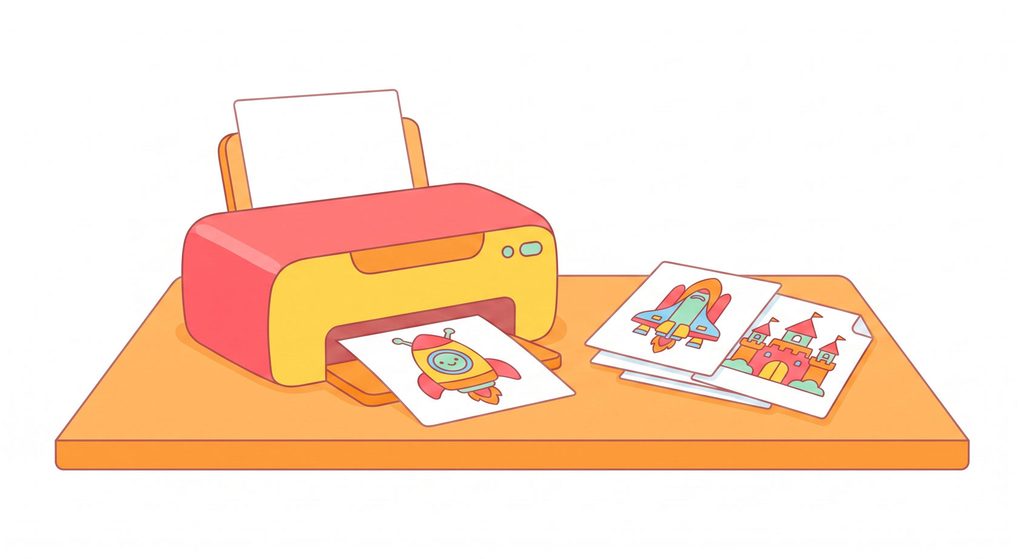
Print from a phone or tablet
You can print straight from a phone, no computer needed.
iPhone or iPad: Download the page, open it in Files (for a PDF) or Photos (for an image). Tap the Share icon, then Print. Choose your AirPrint printer, set the paper size and scaling, and print.
Android: Open the downloaded file in Files, Drive, or Photos. Tap the menu, then Print. Pick your printer (or “Save as PDF”), then set the paper size and scale. Some printers need their own app from the Play Store, or you may need to add a print service first.
No printer at home? Save the PDF to a USB stick or your phone and print it at a library, print shop, or office supply store. Ask them for A4 or Letter, and tell them either “actual size” or “fit to page” so it doesn’t come out shrunk.
“Fit to page” vs “Actual size”
These two scaling options trip people up, so here’s the plain version.
- Fit to page scales the artwork up or down so it fills the printable area. Use this when you want the biggest, fullest image, which is what most people want for coloring. The size may shift slightly.
- Actual size (also shown as 100% or Do not scale) prints at the exact size it was designed at. Use this when the dimensions matter, like matching another sheet. It can leave a margin around the art.
For everyday coloring, Fit to page gives you the largest, cleanest result, so start there.
Borderless and edge-to-edge printing
A quick reality check on borders. Many home printers physically can’t print all the way to the edge of plain paper, so a thin white margin is normal and not something you did wrong. If your printer supports Borderless printing, you’ll find it in the settings, though on a lot of models it only works for photo paper sizes. When borderless isn’t available, Fit to printable area gets you as close to the edge as your printer allows. And the low-tech option always works: trim the margin off with scissors once it’s printed.
The best paper for coloring pages
You don’t need anything fancy. Here’s the short version, and I’ll cover paper in more depth in a separate guide.
- Crayons and colored pencils: standard copy paper (80 to 100 gsm) is perfectly fine.
- Markers: step up to heavier paper (120 gsm or more) or thin cardstock so the ink doesn’t bleed through. Slip a scrap sheet underneath either way to protect the table.
- Finish: go for matte, not glossy. Glossy paper resists crayon and pencil and smears easily.
Saving ink
Coloring pages are mostly white space with thin outlines, so they use very little ink to begin with. To stretch it further, print in Black and white / Grayscale and switch the quality to Draft or Economy for everyday pages. Save the higher quality setting for the ones you plan to frame or give away.
Quick troubleshooting
| Problem | Fix |
| Prints small with a thick white border | Set scaling to Fit to printable area; set margins to None or Minimum |
| Edges get cut off | Switch from Actual size to Fit; check the paper size in the dialog matches the tray |
| A web address or header prints at the top | Turn off Headers and footers in the browser dialog, or print from the downloaded PDF |
| Lines look faint or washed out | Turn off Draft mode, check ink levels, and print from the PDF rather than the browser |
| Whole thing is the wrong size | The paper size in the dialog doesn’t match what’s loaded; set both to the same A4 or Letter |
That’s everything you need for a clean print every time. Grab any page, run one test print with these settings, and you’re set. You can browse the collections here, and if you’re not sure which page suits your child’s age, the difficulty levels make it easy to pick. New to all this? Here’s why coloring is worth the time.
Written by Martin, who founded Coloring.photos and draws every page on it.
Frequently asked questions
Browse our full collection of free, print-ready pages, every one difficulty-rated.
I'm a dad of three and the person behind coloring.photos. I started this site after one too many rainy afternoons hunting for printable pages that were actually good, and actually free. I draw and difficulty-rate every page myself, and I write here about printing, parenting, and keeping little hands happily busy.


 Sofia the First
 Among Us
 Fortnite
 Minecraft
 Pokemon
 Roblox